
This month’s Acoustic Connect release is all about helping you move faster!
Whether you’re building journeys, refining targeting, syncing systems, or managing imports, these updates are designed to reduce friction so you can stay focused on strategy — not process.
Here’s what’s new (and where to find it) 👇
⏳ Multi-step campaigns
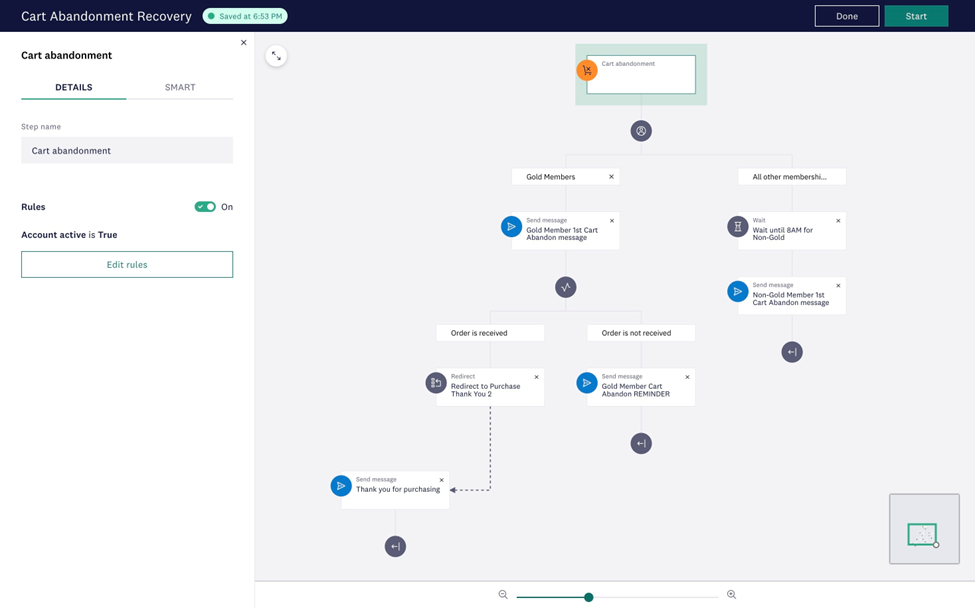
Build conversational journeys that adapt in real time — branching or redirecting based on customer behavior, consent, timing, or external triggers.
Where to navigate:
Campaigns → Create campaign → Select multi-step campaign type
From there, you can add entry signals, steps, define decision points, and apply rules for branching and timing. Learn more
🎯 Sharper segmentation
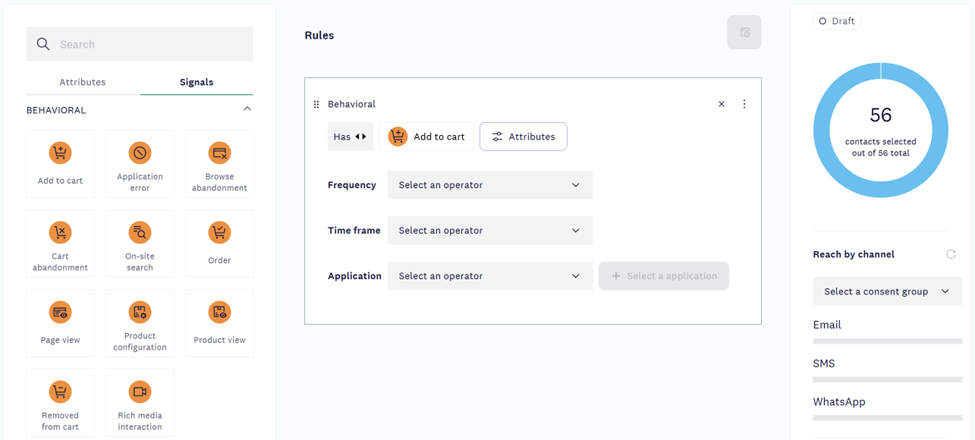
Improve targeting with new device indicators, alongside behavior-based signals.
Where to navigate:
Segments → Create segment → Signals
Select the application attribute when creating your behavioral signal rule. Learn more
🔗 Improved integrations
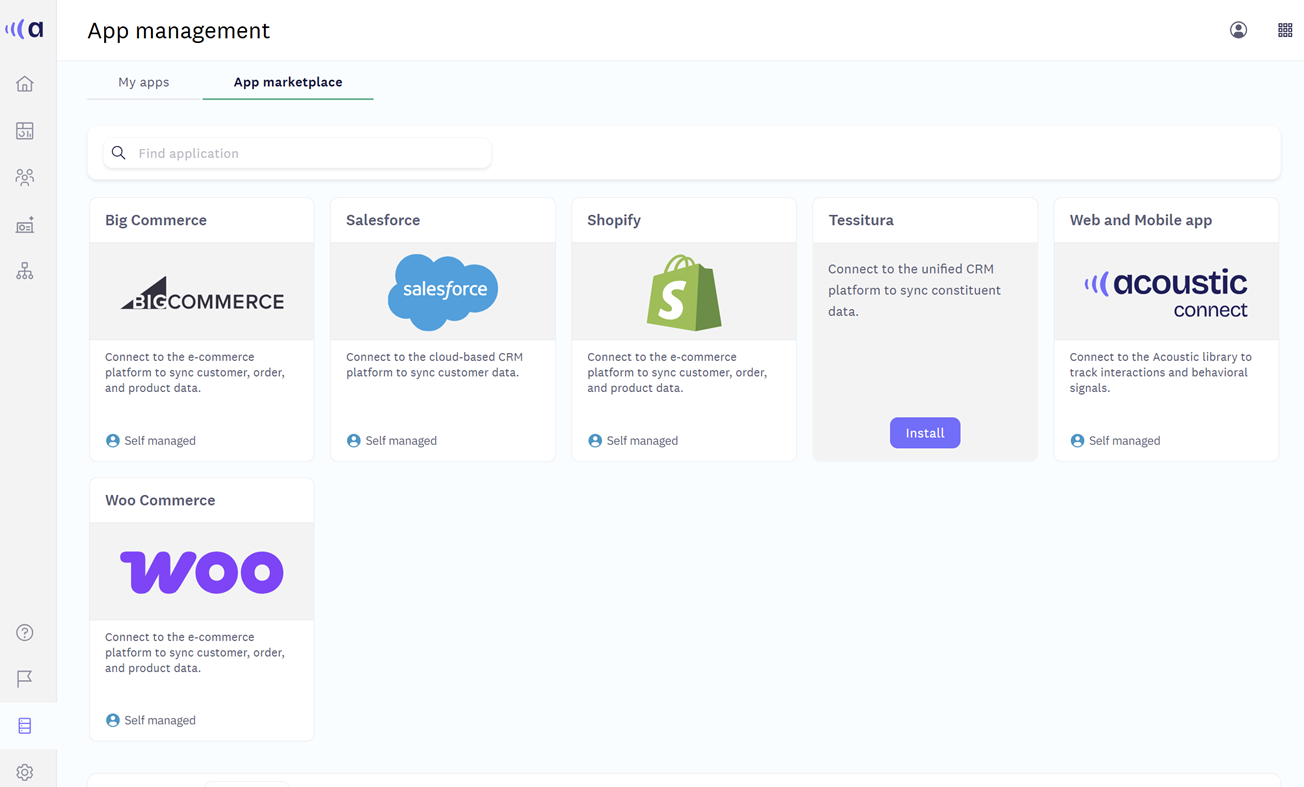
Keep your systems in sync with smoother data exchange across key platforms, such as, Salesforce and Shopify.
Where to navigate:
Data management → App management
Once installed, the app automatically syncs the data. Learn more
🎨 Flexible personalization
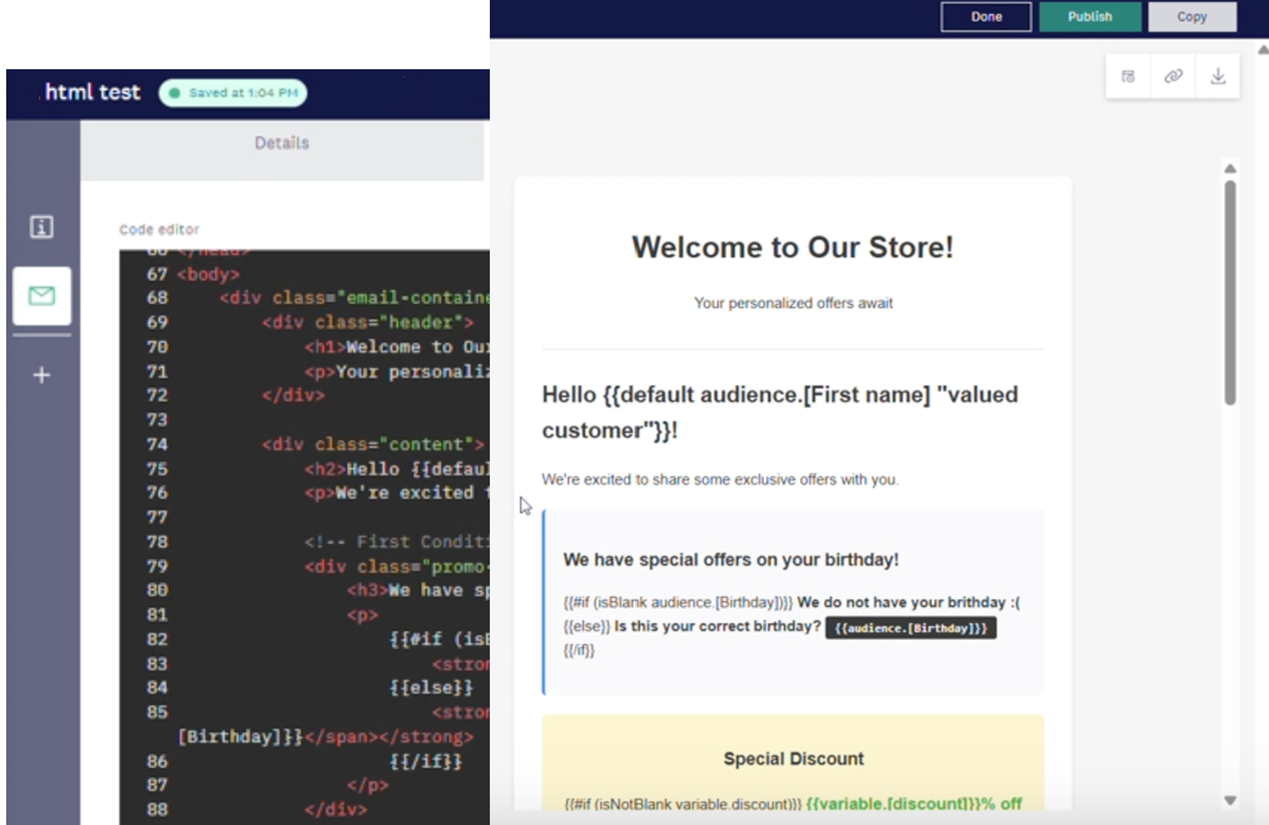
Make campaigns more dynamic with conditional logic in the HTML editor or filter reference set data for more intentional targeting.
Where to navigate:
Content Studio → Create message
Create more relevant email content using Handlebars (HBS) conditional logic in the HTML editor. Dynamically display content, such as, loyalty tier icons or product recommendations—based on audience or custom variables. Learn more
📤 Streamlined exports
Export segments and signals faster, with more flexibility for sharing data, including across external SFTP locations.
Where to navigate:
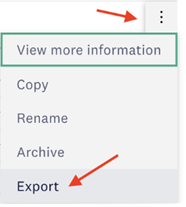
Segments → Segments listing page → Click on the three dots → Export
Export Connect segments as CSVs to your Acoustic SFTP, selecting up to 25 contact and behavioral attributes, splitting large audiences as needed, and tracking delivery with notifications and data job monitoring. Learn more
🗂️ Simplified data management
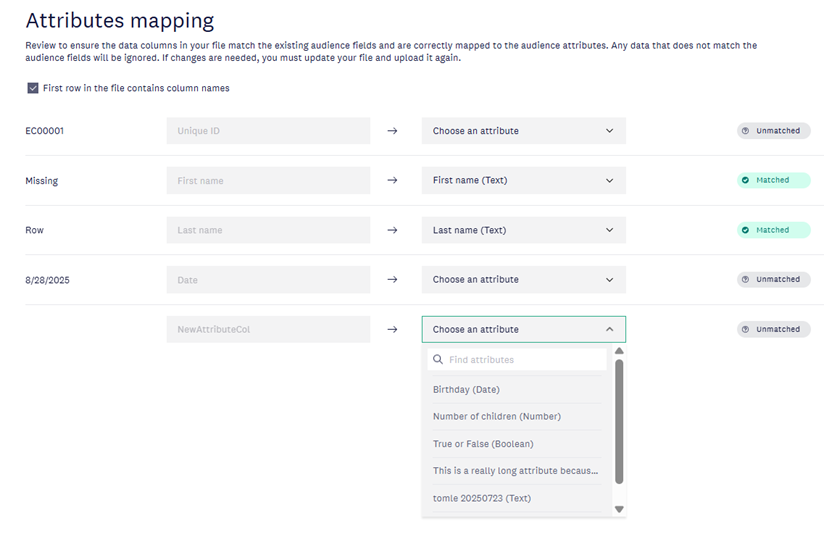
Update data in bulk with fewer clicks. Remove reference set data or create custom attributes during import with ease.
Where to navigate:
Data management → Audience → Attributes
Create custom attribute on mappings page and proceed with bulk import flow. Learn more
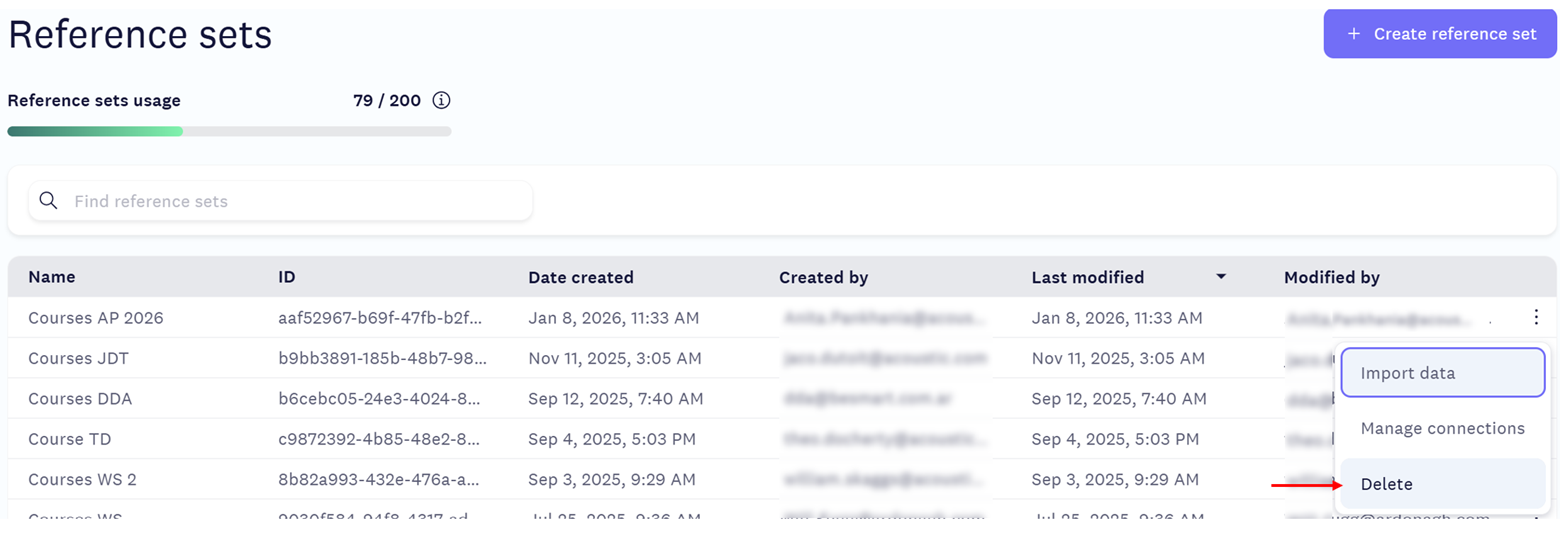
Data management → Reference sets
Navigate to the Reference sets page. Click the three dots icon next to the reference set you want to delete, then select Delete. Learn more
Please sign in to leave a comment.
Comments